An action plan template turns a goal into a list of specific steps, owners, and deadlines. Instead of keeping plans in meeting notes or someone’s memory, a written action plan shows exactly what needs to happen, who is responsible, and how progress will be checked. This makes it easier to keep projects moving and to spot delays before they become problems.
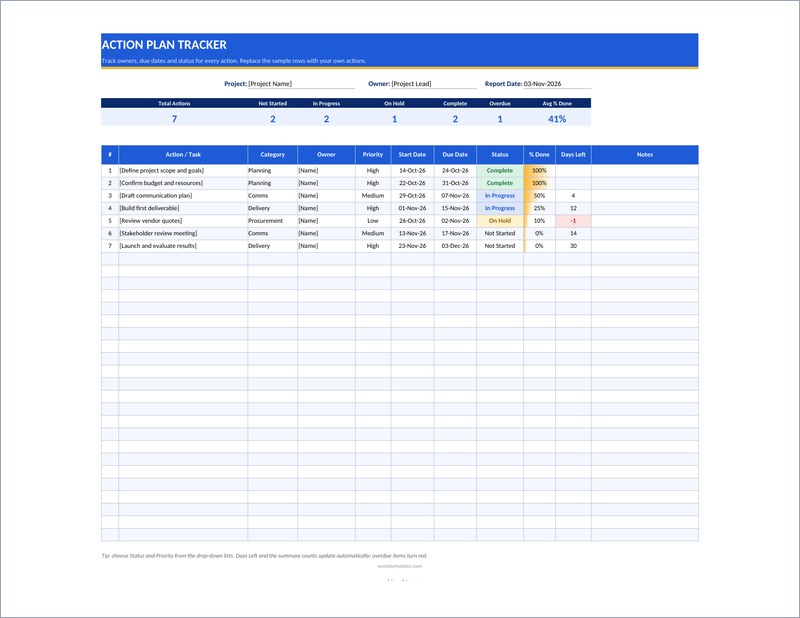
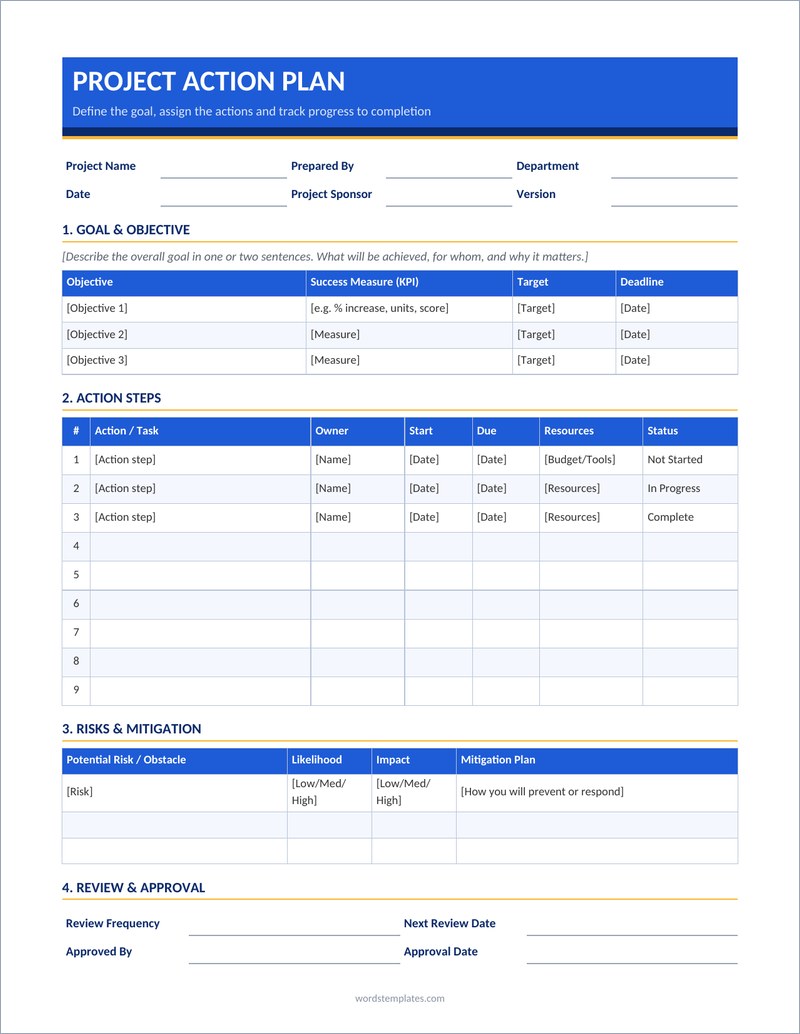
This page offers two editable action plan templates: a project action plan in Word for describing objectives, steps, resources, and responsibilities in a readable document, and an action plan tracker in Excel for following tasks, status, and dates across a team. Managers, project teams, teachers, community groups, small business owners, and individuals working toward personal goals can use them.
A practical action plan usually includes these key elements:
- A clear goal or objective and how success will be measured
- A list of actions or tasks needed to reach the goal
- Owner or responsible person for each action
- Start dates, due dates, and key milestones
- Resources, budget, or support required
- Status or progress updates
- Risks, obstacles, and notes
Write each action as a concrete step someone can start, such as “Draft the supplier comparison” rather than “Look at suppliers”. Give every action one owner, even when several people contribute, and set realistic deadlines that consider other commitments. Review the plan regularly, update statuses honestly, and adjust dates or tasks when circumstances change instead of letting the plan go out of date.
Action plans work best when they are visible. Sharing the tracker with everyone involved, and reviewing it briefly at regular meetings, keeps responsibilities clear and helps the team notice early when a task is slipping.
To use a template, download the Word plan or Excel tracker below. Write your goal and success measure at the top, then list the actions in a logical order. Assign owners and dates, and add resources and risks where relevant. Share the plan with everyone involved and agree on a review schedule, such as weekly. During each review, update progress, mark completed actions, and add new steps as the work develops.
When an action is finished, record the date and outcome rather than deleting the line. A completed plan then becomes a useful record of what was done, which helps when you review the project or plan similar work in the future.
Download Free Editable Action Plan Templates
Download these free, fully editable templates and customize them in Microsoft Word and Excel.
More About the Action Plan Template
This is the place for downloading Action Plan Template here. Planning is a key of success in every field of life. Action plan is an accurate way of planning and it tells you how you would perform your task in a sequence step with plan. Action plan is used in business companies and organizations for increasing the growth of the work and also used in personal life. We offer you our well drafted action plan template. Here you see the attractive image of our provided action plan template. This template is created by our professional designer and the color scheme gave a professional look. This template has been drafted in ms word. If you want to prepare this action plan template according to your requirement you can use edit/remove options and change any content. Below this image we provided you a download for downloading this action plan template. You just one clicks in this button and get the image of action plan template on you PC.
What to Include in an Action Plan Template
The exact content depends on your situation, but most versions should clearly cover objectives, priorities, owners, due dates, time blocks, progress indicators, notes, review dates, and follow-up actions. Arrange information in a logical order, placing the details readers need first near the top. Labels should be specific and familiar, while instructions should be short enough to scan quickly. If a field does not apply, delete it instead of leaving an unexplained blank.
Use plain language and avoid vague phrases that different readers could interpret differently. Where accuracy matters, include a reference number, version date, or responsible person. These small controls make the document easier to trace, update, and verify. For recurring use, create a clean master copy and save completed documents separately so the original is not accidentally overwritten.
How to Customize the Template
- Choose the closest layout. Select the design that already reflects your intended use, audience, and amount of information.
- Save an editable copy. Rename the downloaded file with a meaningful title, date, or version number before making changes.
- Replace every placeholder. Update sample names, dates, amounts, addresses, instructions, headings, and contact information.
- Adjust the structure. Add or remove rows and sections only where necessary, keeping spacing and heading levels consistent.
- Apply your visual identity. Add an approved logo, brand colors, and fonts without reducing readability or crowding the page.
- Review and test. Check spelling, calculations, links, page breaks, margins, and print appearance before distribution.
Choosing the Right Format
Start with the final use. A document completed on screen needs clear editable fields and enough room for typing. A printed version needs suitable margins, legible type, and adequate writing space. If the file will be emailed, keep the size manageable and consider exporting a locked PDF after editing so the layout remains stable. Retain the editable Word version for future revisions.
More detail is not always better. Include the information necessary to complete the task or support a decision, but remove decorative sections that do not serve the user. If several people will complete the document, use consistent labels and brief instructions. If it will be reused frequently, add a revision date and owner so staff can identify the current approved version.
Practical Quality and Safety Checks
Keep entries measurable, assign realistic dates, avoid overloading the page, review progress regularly, and archive completed versions when accountability matters.
Also check accessibility. Use descriptive headings, readable font sizes, strong color contrast, and meaningful link text. Do not rely on color alone to communicate status. For public-facing files, ask someone unfamiliar with the document to review it; fresh readers often find missing instructions or confusing labels that the creator overlooks.
Common Mistakes to Avoid
- Leaving sample text, old dates, or placeholder contact information in the final file.
- Changing fonts and spacing so heavily that the document loses its visual hierarchy.
- Using an attractive layout that does not provide enough room for real information.
- Sharing editable files when a final, non-editable PDF would be safer.
- Failing to verify totals, names, terms, links, or approval requirements.
- Overwriting the master template instead of saving a separate completed copy.
Plan Your Action Plan Template Before Editing
Before changing fonts or colors, decide what the finished planning document must accomplish. Write down the primary audience, the decision or action it should support, and the information that must be available when it is used. For an action plan template, the practical objective is to turn intentions into visible priorities, dates, ownership, and follow-up. This short planning step prevents unnecessary fields from being added and helps you recognize important omissions before distribution.
Map the document from the reader’s point of view. Put identifying information first, the working details in the middle, and approvals or next steps near the end. If the person or team responsible for completing the work will use the file differently, make each responsibility obvious through labels, instructions, or separate sections. A logical sequence reduces questions and makes the completed template easier to check.
Build a Clear Information Hierarchy
Readers should be able to scan the page and understand what matters without studying every line. Use one main title, descriptive section headings, and consistent subheadings. Group related fields together and keep labels close to the information they describe. Typical content may include objective, priority, owner, start and due dates, status, dependencies, notes, review date, and next action. Not every field is required in every case, so remove anything that does not contribute to the purpose.
Use bold text selectively for headings, totals, deadlines, or required actions. Avoid turning entire paragraphs into bold or capital letters because this weakens emphasis. Keep paragraph lengths manageable, align comparable information, and allow enough white space for handwritten or typed entries. A restrained hierarchy usually looks more professional than a page filled with borders, icons, and competing colors.
Create an Efficient Completion Workflow
A template is most valuable when different users can complete it consistently. Add brief instructions where mistakes are likely, but do not overload the page with explanations. Mark truly required fields, provide examples only when they prevent confusion, and specify the expected date, number, or naming format. If the document moves through several hands, state who prepares it, who reviews it, who approves it, and where the final copy is stored.
For repeated use, create a simple workflow: duplicate the approved master, rename the working copy, enter the information, verify supporting evidence, obtain approval, export the final version, and archive it. This process protects the clean master and makes it easier to locate earlier records. It also reduces accidental reuse of outdated names, dates, amounts, or instructions.
Frequently Asked Questions
Can I edit these action plan templates in Microsoft Word?
Yes. Download the Word-compatible file, save a working copy, and replace the sample content. Depending on your Word version and installed fonts, you may need to make small spacing or font adjustments.
Can I use the template in Google Docs?
Usually. Upload the Word file to Google Drive and open it with Google Docs. Review tables, page breaks, fonts, and image placement because conversion can slightly change the layout.
How should I save the finished document?
Keep an editable master in Word format and export a PDF for printing or sharing when recipients should not alter the content. Use a descriptive filename containing the subject, date, and version where helpful.
Is the template suitable for every situation?
No universal template fits every organization, jurisdiction, or workflow. Customize it for your purpose, policies, and audience. For legal, tax, medical, safety, or regulatory matters, have an appropriately qualified professional review the final document.
How can I make the final result look professional?
Use one or two readable fonts, consistent heading styles, balanced white space, aligned elements, accurate information, and restrained colors. Proofread carefully and test both the digital and printed versions.
